
Docker packages your .NET application, its runtime, and its dependencies into a single image that runs the same on your machine, in CI, and in production. Shipping used to mean hoping the server had the right runtime, dependencies, and configuration; the image removes the guesswork. Here's the full workflow, from writing a Dockerfile to running your whole local stack with Docker Compose.
Why Docker for .NET?
Docker containers package your application with its runtime, dependencies, and configuration into a single artifact. The container runs the same way on your machine, in CI/CD, in staging, and in production.
Framework version mismatches and dependency conflicts between machines go away, because every environment runs the same image.
Your First Dockerfile
A basic Dockerfile for a .NET application:
FROM mcr.microsoft.com/dotnet/aspnet:10.0 AS base
WORKDIR /app
EXPOSE 8080
FROM mcr.microsoft.com/dotnet/sdk:10.0 AS build
WORKDIR /src
COPY ["src/MyApp.Api/MyApp.Api.csproj", "src/MyApp.Api/"]
COPY ["src/MyApp.Domain/MyApp.Domain.csproj", "src/MyApp.Domain/"]
COPY ["src/MyApp.Application/MyApp.Application.csproj", "src/MyApp.Application/"]
COPY ["src/MyApp.Infrastructure/MyApp.Infrastructure.csproj", "src/MyApp.Infrastructure/"]
RUN dotnet restore "src/MyApp.Api/MyApp.Api.csproj"
COPY . .
WORKDIR "/src/src/MyApp.Api"
RUN dotnet build -c Release -o /app/build
FROM build AS publish
RUN dotnet publish -c Release -o /app/publish /p:UseAppHost=false
FROM base AS final
WORKDIR /app
COPY /app/publish .
ENTRYPOINT ["dotnet", "MyApp.Api.dll"]
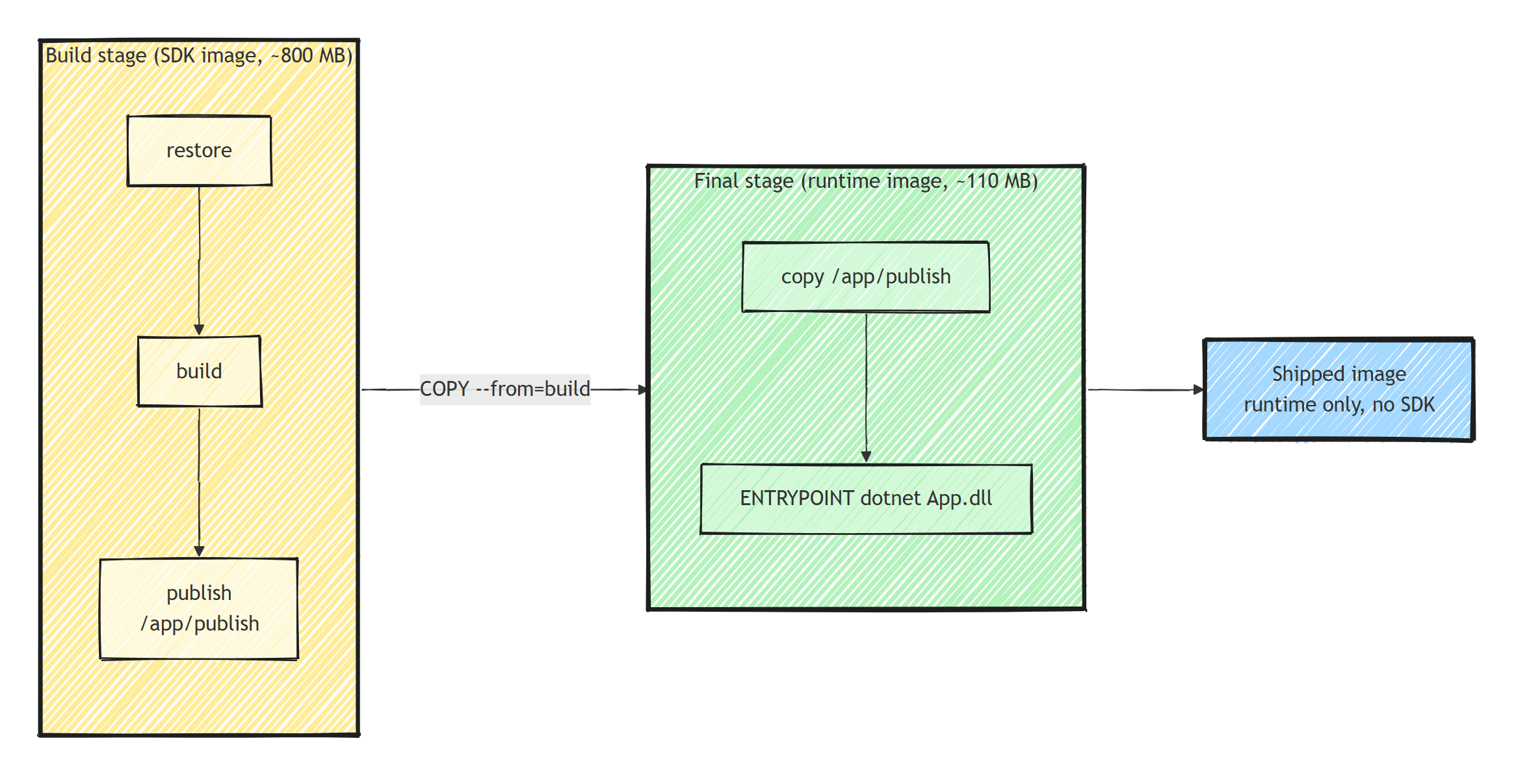
This is a multi-stage build:
- Build stage: uses the SDK image (large) to compile your code
- Publish stage: creates the published output
- Final stage: uses the runtime image (small) to run the app
The final image only contains the runtime and your published binaries (no SDK, no source code). I go deeper on this technique in multi-stage Docker builds for .NET.
By the way, you don't strictly need a Dockerfile anymore.
The .NET SDK can build container images directly with dotnet publish /t:PublishContainer.
A Dockerfile still gives you full control, and every CI/CD system can build one.
Building and Running the Image
Build the image from the directory that contains the Dockerfile:
docker build -t myapp .
The -t myapp flag tags the image so you can refer to it by name instead of a hash.
Run a container from the image and map a port to it:
docker run -p 8080:8080 myapp
The app is now reachable at http://localhost:8080.
Add -d to run it in the background, then use docker ps to list running containers and docker stop to shut one down.
Optimizing the Dockerfile
Layer Caching
Docker caches each layer. Put things that change less frequently first:
# Copy project files first (change rarely)
COPY ["src/MyApp.Api/MyApp.Api.csproj", "src/MyApp.Api/"]
RUN dotnet restore

# Copy source code second (change frequently)
COPY . .
RUN dotnet build -c Release
The dotnet restore layer is cached until a .csproj file changes. Source code changes only rebuild from the COPY . . step.
Use .dockerignore
Exclude files that shouldn't be in the build context:
bin/
obj/
.git/
.vs/
*.md
docker-compose*.yml
.env
node_modules/
This speeds up the build by reducing the context sent to Docker.
Small Images
The multi-stage build is what keeps the shipped image small. The SDK image (around 800 MB) only exists during the build. Your final image copies out the published output and starts from a slim runtime base, so none of the build tooling ends up in production.
Pick the base image that matches your needs:
aspnet:10.0(~220 MB): the default runtime image. Full glibc distro, includes a shell. Start here.aspnet:10.0-alpine(~110 MB): smaller footprint on musl libc. Watch for native dependencies that assume glibc.aspnet:10.0-noble-chiseled(~110 MB): distroless Ubuntu. No shell, no package manager, runs as non-root. Best security posture. I cover these in .NET Docker image optimization with chiseled images.runtime-deps:10.0-alpine(~12 MB): only native dependencies, no .NET runtime. For self-contained or AOT-published apps.
For the smallest image, use self-contained publishing with Alpine:
FROM mcr.microsoft.com/dotnet/runtime-deps:10.0-alpine AS base
WORKDIR /app
EXPOSE 8080
FROM mcr.microsoft.com/dotnet/sdk:10.0-alpine AS publish
WORKDIR /src
COPY . .
RUN dotnet publish "src/MyApp.Api/MyApp.Api.csproj" \
-c Release \
-o /app/publish \
--self-contained true \
-r linux-musl-x64 \
/p:PublishTrimmed=true \
/p:PublishSingleFile=true
FROM base AS final
WORKDIR /app
COPY /app/publish .
ENTRYPOINT ["./MyApp.Api"]
Security: Non-Root User
Don't run containers as root:
FROM mcr.microsoft.com/dotnet/aspnet:10.0 AS base
WORKDIR /app
EXPOSE 8080

# .NET 8+ images ship with a built-in non-root user
USER app
Since .NET 8, the official images include an app user (UID 1654), so a single USER app line is enough.
The chiseled images already run as non-root by default.
Non-root users can't bind to ports below 1024, which is why the images default to port 8080.
Docker Compose for Local Development
Use Docker Compose to run your app with its dependencies:
services:
  api:
    build:
      context: .
      dockerfile: src/MyApp.Api/Dockerfile
    ports:
      - "5000:8080"
    environment:
      - ConnectionStrings__Database=Host=postgres;Database=myapp;Username=postgres;Password=postgres
      - ConnectionStrings__Redis=redis:6379
    depends_on:
      postgres:
        condition: service_healthy
      redis:
        condition: service_started

  postgres:
    image: postgres:16-alpine
    environment:
      POSTGRES_DB: myapp
      POSTGRES_USER: postgres
      POSTGRES_PASSWORD: postgres
    ports:
      - "5432:5432"
    volumes:
      - postgres_data:/var/lib/postgresql/data
    healthcheck:
      test: ["CMD-SHELL", "pg_isready -U postgres"]
      interval: 5s
      timeout: 5s
      retries: 5

  redis:
    image: redis:7-alpine
    ports:
      - "6379:6379"

  seq:
    image: datalust/seq:latest
    environment:
      ACCEPT_EULA: "Y"
    ports:
      - "5341:5341"
      - "8081:80"

  rabbitmq:
    image: rabbitmq:3-management-alpine
    ports:
      - "5672:5672"
      - "15672:15672"

volumes:
  postgres_data:
Start everything:
docker compose up -d
That one command starts your application, database, cache, logging, and message broker. I've written a dedicated guide on Docker Compose for local .NET development if you want to take this setup further.
Environment Variables and Configuration
Pass configuration through environment variables:
environment:
  - ASPNETCORE_ENVIRONMENT=Development
  - ConnectionStrings__Database=Host=postgres;Database=myapp;Username=postgres;Password=postgres
  - Jwt__SecretKey=your-secret-key-here
ASP.NET Core reads these automatically through the configuration system. The __ separator maps to : in configuration paths.
For sensitive values, use Docker secrets or an external secret management solution, not environment variables in docker-compose.yml.
Health Checks
Add health checks to your ASP.NET Core app:
// AspNetCore.HealthChecks.NpgSql + AspNetCore.HealthChecks.Redis
builder.Services.AddHealthChecks()
    .AddNpgSql(connectionString)
    .AddRedis(redisConnectionString);

app.MapHealthChecks("/health");
Reference them in Docker Compose:
api:
  healthcheck:
    test: ["CMD", "curl", "-f", "http://localhost:8080/health"]
    interval: 30s
    timeout: 10s
    retries: 3
    start_period: 40s
One caveat: curl is not guaranteed to exist in every base image, and chiseled images have no shell at all.
In those cases, let the orchestrator (Kubernetes, App Service) probe the health endpoint over HTTP instead of running a command inside the container.
For more on health checks, see Health Checks in ASP.NET Core.
Running EF Core Migrations
Run migrations as a separate step, not in the application startup.
And don't try docker compose run api dotnet ef database update.
The runtime image has no EF tooling and no source code, so it will fail.
The clean solution is an EF Core migration bundle: a self-contained executable that applies pending migrations.
Build it in a dedicated migrations stage, added at the bottom of the Dockerfile from earlier:
FROM mcr.microsoft.com/dotnet/sdk:10.0 AS migrations
WORKDIR /src
COPY . .
RUN dotnet tool install --global dotnet-ef
ENV PATH="$PATH:/root/.dotnet/tools"
RUN dotnet ef migrations bundle \
    --project src/MyApp.Infrastructure \
    --startup-project src/MyApp.Api \
    --self-contained -r linux-x64 \
    -o /app/efbundle
WORKDIR /app
Then run that stage as a one-shot service in Docker Compose:
migrate:
  build:
    context: .
    dockerfile: src/MyApp.Api/Dockerfile
    target: migrations # stage that contains the efbundle
  command: ["./efbundle", "--connection", "Host=postgres;Database=myapp;Username=postgres;Password=postgres"]
  depends_on:
    postgres:
      condition: service_healthy
The api service can then depend on migrate completing successfully (condition: service_completed_successfully).
Common Mistakes
-
Using the SDK image in production. Always use the runtime (
aspnet) image for the final stage. The SDK adds hundreds of MB and includes compilation tools. -
Not using multi-stage builds. Single-stage builds include source code and SDK tools in production.
-
Running as root. Use a non-root user or chiseled images.
-
Not using .dockerignore. Speeds up builds and prevents sensitive files from entering the image.
-
Hardcoding configuration. Use environment variables so the same image works in every environment.
Summary
Docker packages your .NET application for consistent deployment anywhere:
- Use multi-stage builds to keep images small
- Order Dockerfile layers for optimal caching
- Use Docker Compose for local development with all dependencies
- Pass configuration through environment variables
- Run as non-root in production
- Apply EF Core migrations with a migration bundle, not
dotnet efin the runtime image
Your development setup should be one docker compose up command away from running the full stack.
Docker also helps with integration testing: Testcontainers spins up real databases and brokers in your test suite using the same images you run in production.
Thanks for reading, and stay awesome!
Frequently Asked Questions
Do I need a Dockerfile to containerize a .NET app?
No. The .NET SDK can build container images directly with dotnet publish /t:PublishContainer, no Dockerfile required. A Dockerfile still gives you more control over base images, users, and extra layers.
Which Docker base image should I use for .NET?
Use mcr.microsoft.com/dotnet/aspnet for typical web apps, the alpine variant for a smaller footprint, and chiseled images for the best security posture (distroless, non-root, no shell). Use runtime-deps only with self-contained publishing.
What is a multi-stage Docker build in .NET?
A Dockerfile with separate stages: the SDK image compiles and publishes the app, then the final stage copies only the published output into a small runtime image. Your production image contains no SDK or source code and is a fraction of the size.
How do I run EF Core migrations in Docker?
Do not call dotnet ef inside the runtime container; the tool and your source are not there. Create a migration bundle during the build (dotnet ef migrations bundle) and run it as a separate one-shot container or CI/CD step before the app starts.
Should containers run as root?
No. Create a dedicated user in the Dockerfile or use .NET 8+ images that ship with a built-in non-root app user (USER app). Chiseled images are non-root by default.


