# 6 Steps for Setting Up a New .NET Project the Right Way
> Learn how to properly set up a new .NET project with EditorConfig for code consistency, Directory.Build.props for centralized configuration, central package management, static code analysis, Docker Compose or .NET Aspire for local orchestration, and GitHub Actions for CI/CD.
Published: 2025-10-18. Author: Milan Jovanović.
Canonical: https://milanjovanovic.tech/blog/6-steps-for-setting-up-a-new-dotnet-project-the-right-way
Set up a new .NET project in six steps: an `.editorconfig` for code style, `Directory.Build.props` for shared build settings, and `Directory.Packages.props` for central package management.
Then add static analysis with SonarAnalyzer, Docker Compose or .NET Aspire for local orchestration, and a GitHub Actions build.
The whole setup happens before you write any business logic.
Starting a new .NET project is always exciting.
But it's also easy to skip the groundwork that makes a project scalable and maintainable.
Before you write your first line of business logic, there are a few key setup steps that make your life (and your teammates) much easier later on.
Here's how I usually set up a new .NET project in **six simple steps**.
## 1. Enforce a Consistent Code Style
The first thing I add is an `.editorconfig` file.
This file ensures everyone on your team uses the same formatting and naming conventions, reducing inconsistent indents or random naming rules.
You can create one directly in Visual Studio:
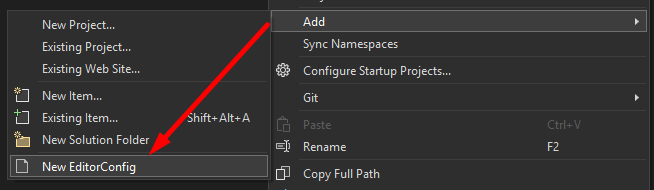
The default configuration is a great start.
But you can customize it further to fit your team's preferences.
Place it at the **solution root** so all projects follow the same rules.
You can still override specific settings in subfolders if needed by placing an `.editorconfig` file there.
Here are two sample `.editorconfig` files you can use:
- [From the .NET runtime repo](https://github.com/dotnet/runtime/blob/main/.editorconfig)
- [Created by me for general .NET projects](https://gist.github.com/m-jovanovic/417b7d0a641d7dd7d1972550fba298db)
## 2. Centralize Build Configuration
Next, I add a `Directory.Build.props` file to the solution root.
This file lets you define build settings that apply to every project in the solution.
Here's an example:
```xml
net10.0
enable
enable
true
```
This keeps your `.csproj` files clean and consistent, since there's no need to repeat these properties in every project.
If you later want to enable static analyzers or tweak build options, you can do it once here.
What's cool about this is your `.csproj` files become basically empty, with only NuGet package references most of the time.
## 3. Centralize Package Management
As your solution grows, managing NuGet package versions across multiple projects gets painful.
That's where [**central package management**](https://milanjovanovic.tech/blog/central-package-management-in-net-simplify-nuget-dependencies) helps.
Create a file named `Directory.Packages.props` at the root:
```xml
true
```
Now, when you reference a NuGet package in your project, you don't specify the version.
You can only use the package name like this:
```xml
```
All versioning is handled centrally.
This makes dependency upgrades trivial and avoids version drift between projects.
You can still override versions in individual projects if needed.
## 4. Add Static Code Analysis
[**Static code analysis**](https://milanjovanovic.tech/blog/improving-code-quality-in-csharp-with-static-code-analysis) helps catch potential bugs and maintain code quality.
.NET has a set of built-in analyzers, but I like to add **SonarAnalyzer.CSharp** for more comprehensive checks.
Let's install **SonarAnalyzer.CSharp** to catch potential code issues early:
```powershell
Install-Package SonarAnalyzer.CSharp
```
Add it as a global package reference inside your `Directory.Build.props`:
```xml
```
Combine this with:
```xml
true
latest
All
true
true
```
…and your build will fail on serious code quality issues.
This can be a great safety net.
But it can also be noisy at first.
If some rules don't fit your context, you can adjust or suppress them in `.editorconfig` by setting the rule severity to `none`.
## 5. Set Up Local Orchestration
For a consistent local environment across your team, you'll want container orchestration.
You have two main options:
**Option 1: Docker Compose**
Add **Docker Compose support** in Visual Studio.
It will scaffold a `docker-compose.yml` file where you can define services like:
```yaml
services:
webapi:
build: .
postgres:
image: postgres:18
environment:
POSTGRES_PASSWORD: password
```
This lets every developer spin up the same stack locally with one command.
**Option 2: .NET Aspire**
[**.NET Aspire**](https://milanjovanovic.tech/blog/dotnet-aspire-a-game-changer-for-cloud-native-development) takes orchestration a step further.
It provides [**service discovery**](https://milanjovanovic.tech/blog/how-dotnet-aspire-simplifies-service-discovery),
[**telemetry**](https://milanjovanovic.tech/blog/introduction-to-distributed-tracing-with-opentelemetry-in-dotnet), and streamlined configuration, all integrated with your .NET projects.
It's become a **personal favorite of mine**.
You can add a .NET project and a Postgres resource with a few lines of code:
```csharp
var postgres = builder.AddPostgres("demo-db");
builder.AddProject("webapi")
.WithReference(postgres)
.WaitFor(postgres);
builder.Build().Run();
```
Aspire still uses [**Docker**](https://milanjovanovic.tech/blog/docker-dotnet-developers) under the hood but provides a richer developer experience.
Whether you pick Docker Compose or Aspire, the goal is the same: a repeatable, reliable local setup that works the same on every machine.
## 6. Automate Builds with CI
Finally, I set up a simple [**GitHub Actions**](https://milanjovanovic.tech/blog/how-to-build-ci-cd-pipeline-with-github-actions-and-dotnet) workflow to validate each commit.
Example `.github/workflows/build.yml`:
```yaml
name: Build
on:
push:
# Filter to only run on main branch
branches: [main]
jobs:
build:
runs-on: ubuntu-latest
steps:
- uses: actions/checkout@v4
- uses: actions/setup-dotnet@v5
with:
dotnet-version: 10.0.x
- run: dotnet restore
- run: dotnet build --no-restore --configuration Release
- run: dotnet test --no-build --configuration Release
```
This ensures your project always builds and passes tests, and it catches issues before they reach production.
If the CI build fails, you know something's wrong right away.
When it comes to testing, I highly recommend exploring:
- [**Architecture testing**](https://milanjovanovic.tech/blog/shift-left-with-architecture-testing-in-dotnet) to enforce architectural rules in your codebase
- [**Integration testing with Testcontainers**](https://milanjovanovic.tech/blog/testcontainers-integration-testing-using-docker-in-dotnet)
to spin up real dependencies in Docker during tests (you can run this locally and in CI)
This will give you confidence that your code works as expected in an (as close as possible) production-like environment.
## Wrapping Up
That's a wrap.
Your **new .NET project** is now set up with:
- consistent code style
- centralized build and package management
- code quality enforcement
- reproducible local orchestration
- continuous integration
These small setup steps save countless hours down the road and keep your codebase clean, predictable, and ready to scale.
Once your project setup is solid, the next step is designing scalable boundaries.
In my [**Modular Monolith Architecture**](https://milanjovanovic.tech/modular-monolith-architecture) course, I show how to grow a .NET application without turning it into a tangled mess,
through clear module boundaries, messaging, and domain isolation.
If you're looking for a practical walkthrough of these steps, check out [**this video**](https://youtu.be/QRgtcbxJlo0).
Thanks for reading.
And stay awesome!
---
## Frequently asked questions
### How do you set up a new .NET project the right way?
Start with six steps: add an .editorconfig for consistent code style, centralize build settings in Directory.Build.props, enable central package management, add static code analysis, set up local orchestration with Docker Compose or .NET Aspire, and automate builds with a CI pipeline.
### Why should you use an .editorconfig file in a .NET solution?
An .editorconfig file ensures everyone on the team uses the same formatting and naming conventions. Place it at the solution root so all projects follow the same rules, and override specific settings in subfolders with another .editorconfig when needed.
### What is Directory.Build.props used for?
Directory.Build.props is a file at the solution root that defines build settings applied to every project, such as target framework, nullable reference types, and treating warnings as errors. It keeps .csproj files clean because shared properties are declared once instead of repeated per project.
### What is central package management in .NET?
Central package management moves NuGet package versions into a single Directory.Packages.props file with ManagePackageVersionsCentrally enabled. Projects reference packages by name only, versioning is handled centrally, upgrades become trivial, and version drift between projects is avoided. Individual projects can still override versions when needed.
### Should I use Docker Compose or .NET Aspire for local development?
Both give you a repeatable local environment. Docker Compose defines services in a docker-compose.yml that every developer runs with one command. .NET Aspire builds on Docker and adds service discovery, telemetry, and streamlined configuration integrated with your .NET projects, for a richer developer experience.
### How do you add static code analysis to a .NET project?
Install the SonarAnalyzer.CSharp NuGet package and reference it globally in Directory.Build.props. Combine it with TreatWarningsAsErrors, AnalysisLevel latest, and AnalysisMode All so the build fails on serious code quality issues. Rules that do not fit your context can be suppressed in .editorconfig.